
Basics of Facebook Ads – Things to Know to Get Started
I sometimes use affiliate links in content. This doesn’t cost you anything but I may make a commission payment from anything you buy through these links. As an Amazon Associate I earn from qualifying purchases. All opinions remain my own.
Facebook still stands head and shoulders above the others as the social media network with the most users. This means for almost every business, there will be an audience on there. But as organic reach has declined, getting in front of that audience has become harder.
That’s where Facebook ads come in. These are the dedicated ads that the network offers for businesses to create to target the people they want to know about their products or services. It is why people often call Facebook a ‘pay to play’ model – you need to run ads to get in front of people.
Whether this is the whole story or not, it is a good idea to get to know the basics of Facebook ads to help you decide if it the right path to go for your business. And what else you need to learn before diving into them!
Table of Contents
Why use Facebook ads?
The primary reason for using Facebook ads is simple – there are over 2.6 billion monthly active users on the platform (1st quarter 2020) which means the network is the biggest in the world. Active users are defined as those who have logged on within the last quarter.
But it is about more than just numbers. It is about the targeting options you can use within the ads platform to get super-specific about who sees your ads. This means that you are spending money in a much more targeted way and this improves the results.
Plus, Facebook ads are connected to Instagram ads and you can run one campaign across both platforms. This increases reach again and gives you an even bigger target audience to work with.
How to set up your account
To make use of Facebook ads, you need to have a Facebook Page and use the tools that the platform offers to help set up and manage these ads.
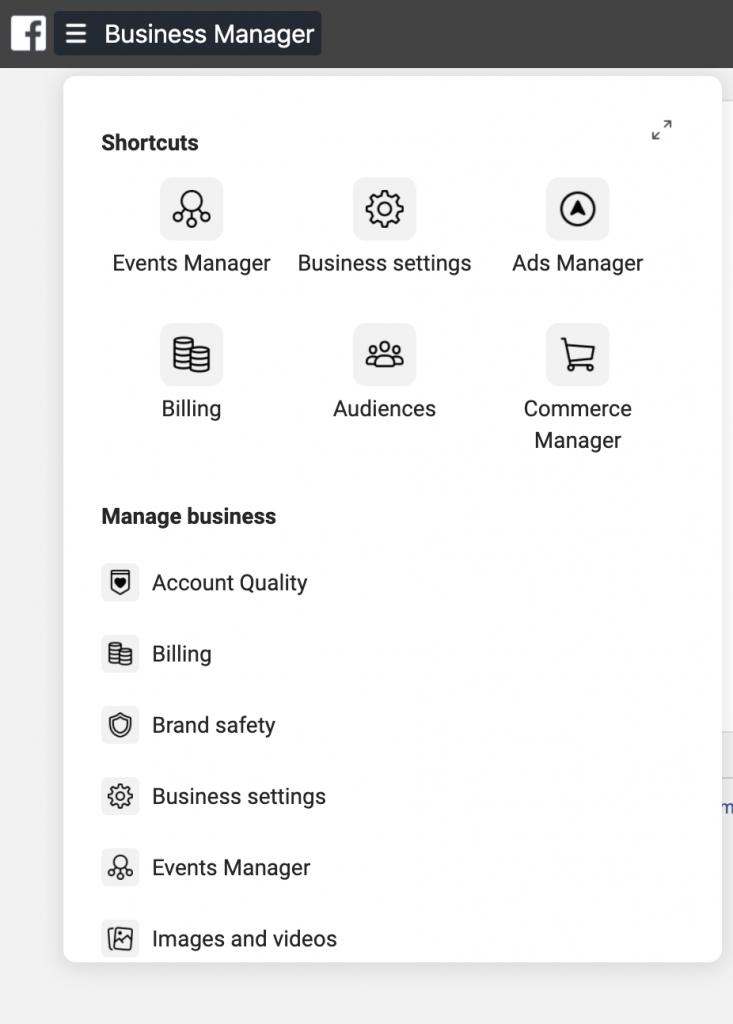
Facebook Business Manager
First up is Business Manager, the tool to manage your Facebook Pages and their ad accounts. It is a quick way to work with employees or VA’s as well as bring in agency assistance if you don’t want to manage ads yourself.
To use Business Manager, you need to add your pages. First go to Business Manager Settings then under Accounts > Pages add your page. You have three options here, to claim a page, request access to a page or create a new one. Let’s assume you are adding an existing page so ‘claim a page’ is the option you want.
The other thing to do is to add an ad account. Under Accounts > Ad Account, click the blue ‘add account’ button and either claim an existing account, request access or create a new one. If you already have an ad account, just add the ID from it to claim it here.
Set up a payment method
Before you can create an ad, you need to set up a way to pay Facebook for those ads. Under Ad Accounts you can add all the information for payment as well as things like VAT number (if you are in the EU), currency and time zone. You can add a secondary payment option as well if you want.
Billing takes place either at the end of every month or when you reach the billing threshold you set in the account. This usually starts at $25 and increases as you spend more. You can also set a spending limit here for ads, so the ad automatically stops once this limit is reached – in case you forget you have it running!
Basics of Facebook ads
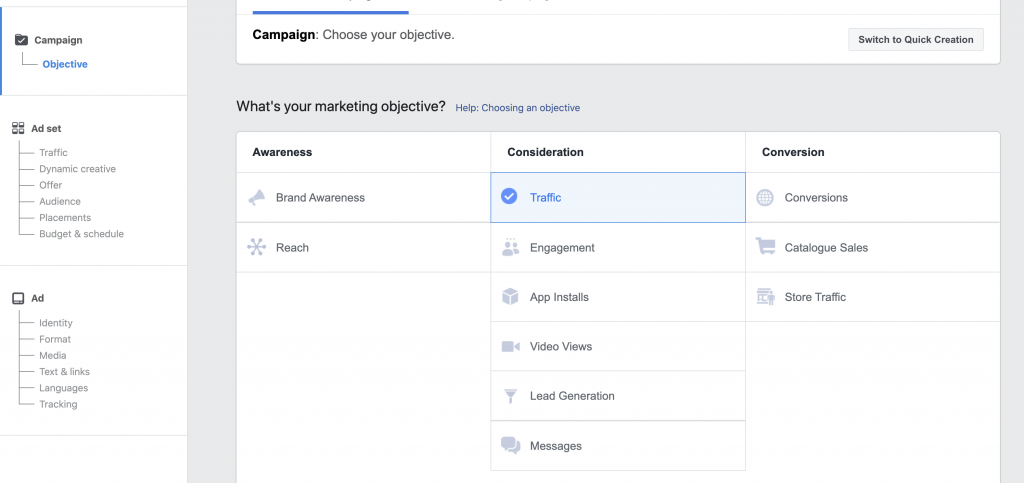
Once you have set up the Business Manager to run your ads, then you are ready to start thinking about the different types of ads you can run. There are a few variations to choose from, each with their own specifics and benefits.
Traffic and leads for a website
The aim of these ads is to get people to your website, whether to extend overall reach and traffic, get them to a dedicated landing page or sign up for an email list. There are three main ads to do this.
Link click ads
These are the most common ad types and appear in the right column, newsfeed and on Instagram. They promote your website and send people to blog posts or sales pages. You can use them in several placements to extend their reach. They also have a pleasant side effect of increasing page likes.
Ad specs:
- Image size: 1200 x 629
- Ad copy text: 90 characters
- Headline: 25 characters
- Link description: 30 characters
Video ads
Video ads appear in the newsfeed on desktop and mobile as well as on Instagram and are the same as link click ads but use video rather than a still image.
Ad specs:
- File size: up to 4GB – 16:9 to 9:16 ratio
- Vide length: up to 120 minutes but 15-30 seconds work best
- Ad copy text: 90 characters
Boosted post
A boosted post can be accessed through the Ads Manager or straight through the post and appears in both newsfeeds and Instagram. You can still set audience and bidding methods, but it is for that specific post.
Ad specs:
- Image size: 1200 x 629 pixels
- Ad copy text: unlimited
- Headline: 25 characters
- Link description: 30 characters
Sales and leads ads
These types of ads are more designed to showcase a product or service all within a single ad. You can even collect email addresses or interact with the brand straight from the ad which helps drive down lead costs.
Multi product or carousel ads
These appear in the newsfeed and on Instagram and let you show up to 10 images and/or video along with headlines, links or a call to action in a single ad. This is great to show products in a set or multiple views of a product.
Ad specs:
- Image size: 1080 x 1080 or 600 x 600 pixels
- Ad copy text: 90 characters
- Headline: 25 characters
- Link description: 30 characters
Dynamic Product Ads (DPA)
These appear in the newsfeed, right column and Instagram and are based on users’ past actions with the website to provide a perfectly timed ad when someone has shown interest.
Ad specs:
- Image size: 1200 x 628 or 600 x 600 pixels
- Ad copy text: 90 characters
- Headline: 25 characters
- Link description: 30 characters
Facebook lead ads
Available in the newsfeed and on Instagram, these are specifically designed to get new leads and lets someone download content or sign up for an offer without leaving Facebook.
You can integrate with an email marketing software system or something like a CRM otherwise the email addresses are stored on Facebook.
Ad specs:
- Image size: 1200 x 628 pixels
- Ad copy text: 90 characters
- Headline: 25 characters
- Link description: 30 characters
- Context card in paragraph format for unlimited characters or up to 5 bullet points with 80 characters per bullet, a headline of 60 characters and a button of 30 characters.
- Links to your privacy policy and website are required
Canvas ads
These are for the mobile newsfeed only and allow a carousel of images that can tilted, zoomed in or out or moved in different directions by finger movements. They can include a range of elements including a logo, full screen image, text block, offsite links, images, video and product sets.
Ad specs:
- Image size: 1200 x 628 or 600 x 600 pixels
- Ad copy text: 90 characters
- Headline: 25 characters
Collection ads
For product sellers with a catalogue of items, this mobile newsfeed ad is a great way to show them all in one ad.
Ad specs:
- Image size: 1200 x 628 or 600 x 600 pixels
- Image ratio: 1:9:1
- No more than 20% text
- Headline: 25 characters
Likes and page engagement ads
If you want to increase likes on your page or the reach of content, these ads may be the right choice.
Page like ads
Maybe you want to work on sponsored content and want a specific number of likes on your page for this. Then this ad is ideal, appearing on the newsfeed and right column to prompt people to like your page. Great images are very important for this type of ad.
Page post photo ad
This is a boost for the photo on your post and can generate likes and comments for your page.
Page post video ads
This is the video version of these page like posts and lets you get your video content in front of more people to get likes and engagements.
Page post text ad
This is to promote a text update which is a bit strange as these don’t do as well as text with images but is worth mentioning it is an option.
Store or event ads
This category of ads is designed to tell people about a physical store event or promotion.
Events ads
With the right targeting, these newsfeed and right column ads are a great way to boost awareness of an event you are hosting to a local audience.
Offer claims
These ads are for physical stores who have an offer in-store and want to use an ad to promote it and allow online users to redeem the offer and get the details of it in an email.
Local awareness ads
As the name suggests, this is a way to target people who are in your geographical area to let them know your store or business exists. You can use call to actions such as ‘call now’ or ‘send a message’ to prompt contact.
Messenger ads
Messenger ads only appear in the Facebook Messenger Inbox and Stories areas and will appear alongside conversations with friends. They are used to promote a page and encourage people to interact with it.
App install ads
The final category is if you have an app and want to promote this to get more installs. There are three main areas you can promote the app:
- Mobile app ad – mobile newsfeed
- Desktop app ad – desktop newsfeed and right column
- Instagram mobile app ads – Instagram
You Might Also Like How to Write the Best Instagram Captions to Get Results From Skylark Virtual Services.
Facebook audiences
Within each ad set of an ad, you have the option to choose a specific audience and this is the really powerful part of Facebook ads, where all those billions of users come into effect. There’s lots of options but let’s take a look at the basics of Facebook ads audiences.
Audience is the second screen you see after choosing the type of ad and contains a series of areas:
- Create a custom audience
- Geographic targeting
- Targeting by age, gender or language
- Targeting by interest or behaviour
- Targeting based on connections to your page (or a lack of them)
- Audience selection scale (graphic)
- Audience selection overview
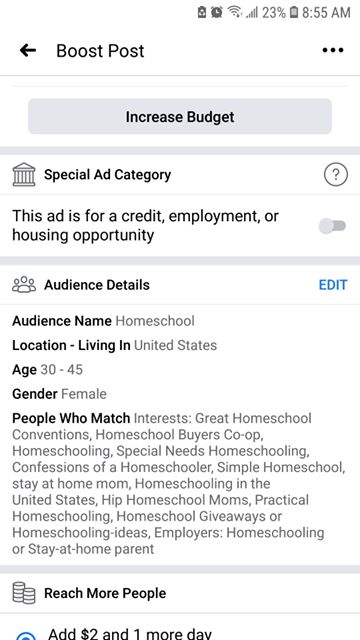
Audience targeting
The range of audience targeting options is where you can really narrow down who gets to see your ad. Within each targeting, there are various different options that let you fine tune. These re known as ‘saved audiences’ within the platform.
For example, with ‘location’ audiences you can choose:
- Everyone in the location
- People who live in the location
- People recently in this location
- People travelling to the location (and add a certain distance away they are travelling from)
- Exact location by country, state, region, city, post code or even address
Demographics targeting ranges from age, gender and language to more subtle ones such as education level, income status and relationship status. Interests cover a wide range of topics such as business, shopping, sports and so on.
Connections are to your page, their friends or to exclude people who like your page (such as to generate new likes) as well as similar settings for apps and events.
Custom audiences
Custom audiences have had a previous relations with you and can be used to create a dedicated audience. You can create a new custom audience from the audience settings page, and these can be based on a customer list you upload, website traffic or app activity.
Lookalike audiences
The third audience type is a lookalike and is where Facebook gets clever. It takes one of your existing audiences and lets you create a new audience of people who are similar to them. They work by selecting a target country and a percentage (between 1-10%) of users from that country.
Ideal audience size
What is an ideal audience size for Facebook ads depends a lot on your business and aims. But generally, audiences in the millions are not a good thing – narrowing down the pool gives better results.
Settings such as AND/OR targeting options lets you cut down an audience size and make it more effective. So, you could target someone interested in Pinterest who must also be interested in blogging to find Pinterest marketers who create content.
Campaign structure and bidding
Facebook ads come with a three tiered structure – the campaign, the ad set and the ad. Each campaign can have several ad sets with a unique campaign objective. Ad sets can have multiple ads with different targeting, budgets, bidding and placement. The ad is the smallest unit, and each can have different URLs, images and text.

Campaign budget
The campaign budget is where you choose one of two options to set the budget for the ad:
- Daily budget – this tells Facebook to spend the budget every day while the campaign is live but may not spend the same amount every day
- Lifetime budget – this is for the length of the ad when you set a start and finish date and means Facebook will divide the amount across the number of dates
Manual versus automatic bidding
For most first time users, it is best to go with automatic bidding for ads and allow the algorithm to do the work for you. This means you don’t need previous data to help make decisions.
Once you have more experience, you may want to switch to manual bidding to have more control. This works when you know how much you are willing to pay for a conversion.
Split testing
Split testing does have limitations, but you can do this on Facebook ads. You can split test things like audience, ad delivery or ad placements at the ad level with the selection of a split testing box when setting up your ad.
Ad best practices
There are always a few best practices that can help you get the most from your ads. Some of these depend on the type of ads. But a few top tips from ads experts at Ad Espresso include:
- Make ads colourful so people stop scrolling and look at them
- Have the main value proposition in the image of the ad so people see it immediately
- Create a contrast in the newsfeed
- Make sure you follow ad specs for sizes, so the ads look great on every screen
Analytics
The key to effective use of ads is to monitor what’s happening and use the data to make changes in your ads. That’s where the built-in analytics on Facebook will help.
The Ads Manager is the best place to see the data and you can select a range of dates and time frames to study the information. You can also compare two date ranges if you are running an ad for a second time and want to compare to a previous time.
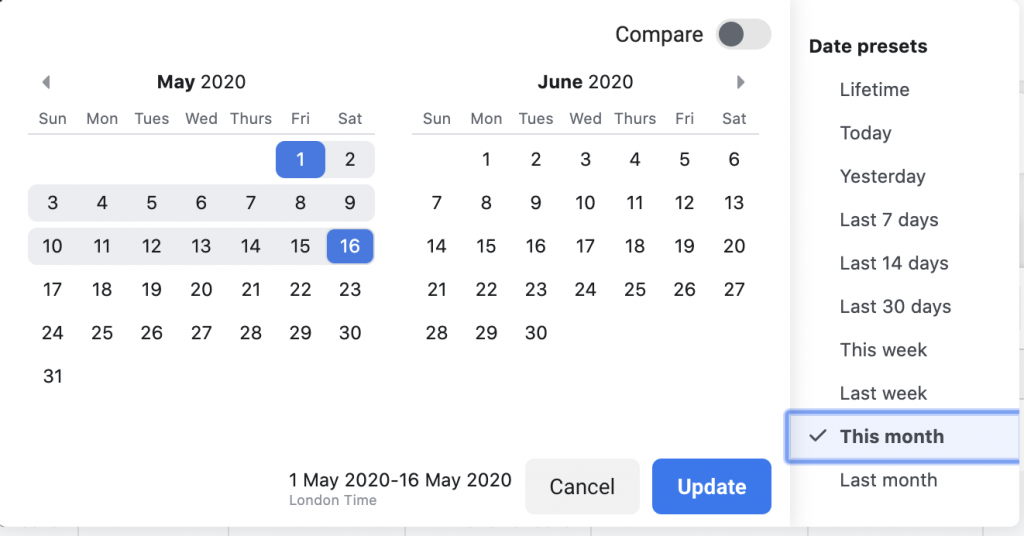
You can see information such as:
- Cost per click
- Cost per conversion
- Impression
- Unique link clicks

You can also change or add more metrics to get specific information that you require. These can be saved to create customised reports to get them back as a present later.
More advanced reporting includes things such as delivery metrics, action and time metrics. Each can be selection from the sections to get a range of different combination reports.
Facebook offers an automated report delivery if you plan to run ads for same time and this can be set to send you a weekly report on a set day.
Facebook ad basics
Facebook ads can sound complicated and when you are spending money, you definitely want to have the hang of the fundamentals before you start. But once you have a clear picture of what you want from your ads and who to target with them, they are a great way to make use of all of those billions of monthly users.
Have you tried Facebook ads – tell us what you found in the comments!


