

How to Easily Use Google Analytics for WordPress
I sometimes use affiliate links in content. This doesn’t cost you anything but I may make a commission payment from anything you buy through these links. As an Amazon Associate I earn from qualifying purchases. All opinions remain my own.
When it comes to understanding your traffic, the best blog analytics comes from one place – Google Analytics. This is a free analytics tracking program that is made by Google and is considered the gold standard. But how do you easily use Google Analytics for WordPress and what can you track on it?
Table of Contents
How to add Google Analytics
Before we take a peep at the benefits of using the software, let’s start by looking at how to add Google Analytics for WordPress. You do need to have an account with Google Analytics before you start – that’s easy to do by going to the website and signing up with your Google account. This will provide you with a tracking code that is added to your website.
Once you have set up the account and input the information about the website then accepted the terms, you will see a sign that has the tracking ID in the top centre of the screen – it usually starts with UA- then ten numbers, a dash, and another number.
Next up is adding this information to your blog so the two can chat. There are two main ways to do it.
Insert Headers and Footers
The first is a plugin that is the easiest way to add any kind of tracking codes to your website – a plugin called Insert Headers and Footers. This is the simplest way to add the Google Analytics code to your blog – but this isn’t just your tracking info but the whole code that the software provides.
Google Analytics Dashboard for WP
The other option is Google Analytics Dashboard for WP, another plugin for GA but one that is designed to work for just one purpose. It is connected with GA and also allows you to view much of your analytics information within your dashboard.

There are other plugins that do similar jobs but these are the two I’ve personally used on my websites.
The Google Analytics Dashboard
Once you have added the Google Analytics code to your WordPress blog, then it usually takes a day or so for data to start to accumulate. You can use the plugin to check info but let’s go through the software on its own website to get used to it all.
A few of the metrics to watch for when you first start using the dashboard include:
- Users – the number of unique people who have visited your site
- Sessions – the number of visits to your site including if people have visited multiple times
- Bounce rate – the number of people who leave your site without completing any actions so if they click and press ‘back’ this would count as a bounce (there is a little vagueness about this however as someone who reads a whole post then leaves might still count as a bounce)
- Session duration – this is how long each person on average spends on your site (again this one can be a little confusing so don’t take it too literally)

Other info
You do need to enable a few reports to get the best out of GA but go into each option and it will tell you if you need to do anything. Once you have ticked all the boxes, you can start to get lots of interesting information from it.
Demographics is an important area and a very interesting one. This looks at your audience as a whole and gives you ideas about their age, location, and occupation as well as what device they use to access your site and more. You can see this under Audience – Overview or see more details under each specific tab.
Top content is another thing you can find out when you set up Google Analytics for WordPress and this is helpful in a number of ways. By going to Behaviour – Site content – All Pages you can see the top pages that people visit. The ‘/’ is your homepage then each is the individual page or post after that.
The third really useful thing you can find out from the dashboard is where your traffic comes from. There are four main options:
- Organic – finds you through a search engine
- Direct – types your address into their browser
- Referral – sent from a link on another site
- Social – finds you from social media sites such as Facebook
This last one is a good way to see which social media sites are working in your efforts. My top ones fluctuate between Facebook and Pinterest depending on how much promotion on Facebook Groups I’ve done that week. Others include Twitter, LinkedIn, and such.
Campaigns
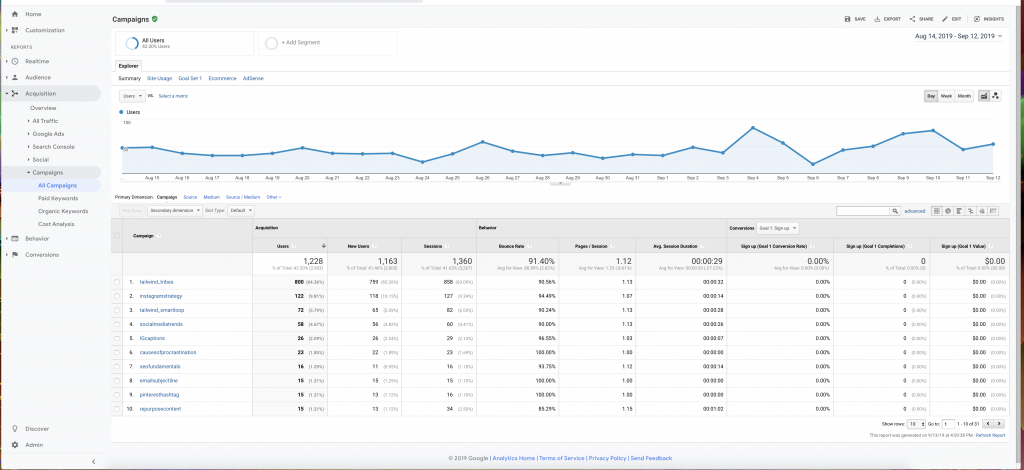
If you use Pinterest to promote your blog (and you really should!!) then you may also make use of Tailwind. Two of the bonus features of Tailwind are Smart Loop and Tribes and you can track how these are working through Google Analytics.
If you go into Acquisition > Campaigns > All Campaigns you will see traffic from Tribes, Smart Loop, and any other paid campaigns you have used. If you use UTM codes for your Pins, you will also see which campaigns have sent traffic to your site and all the relevant information about them in this section.
Goals
One of the features that you can also try when you get a bit further into your use of Google Analytics is Goals. These allow you to track how many people follow a certain path through your website and where they come from.
An example from my site is when people sign up for a Pinterest keywords freebie, they are given a one-time offer for a Pinterest Planner I have. After this, they either go to the checkout page and a dedicated thank you for having purchased or not.
I can set goals up for this thank you page and see how many people sign up for the freebie, go to the sales page, and then the thank you page for easy conversion figures.
Google Analytics 4
As of 2020, Google Analytics 4 started to appear on the app as an option. This is going to be the new version of GA once they have completed the beta testing.
At the moment, it is worth creating a new separate view for GA4 so that it starts to collect data. That way, when the switch is made, you don’t have to wait weeks to have information. The key is to follow the instructions in the admin section of your account and create a new view while retaining your existing one.
Then there’s a simple bit of code to add to the header of the site, just the same as when setting up GA originally. Do this now and you will be ready when the time to switch does come.
Making the most of the data
This is just a basic overview of what you can do with Google Analytics. You can use it for a lot more including setting up custom conversions to track people signing up to your email list and which pages people leave your site from.
It is definitely worth playing around with and starting to record a series of metrics to see what happens when you make changes to your website. It is also a great tool to help with lots of SEO stuff – although you never find out what keywords people use to come to your site from it!
Get more Google Analytics info
I would also recommend Debbie Gartner’s brilliant book Google Analytics Easy as 1-2-3 to get yourself used to using and reviewing the information in Google Analytics!
Do you use GA for your blog? What metrics do you track? Tell us in the comments below!
More From Skylark Virtual Services: