

How Do You Start a Story on Instagram?
I sometimes use affiliate links in content. This doesn’t cost you anything but I may make a commission payment from anything you buy through these links. As an Amazon Associate I earn from qualifying purchases. All opinions remain my own.
Instagram Stories have been around for a little while now and show no sign of slowing down. Users love them and that means serious Instagram marketers need to make use of them.
But I get it, you don’t even know where to start! Well, let’s dive into the tech side of things and look at how do you start a Story on Instagram so that you are confident and ready to get creative.
Table of Contents
What is an Instagram Story?
An Instagram Story is a type of ephemeral content. This means that it only lasts for 24 hours and then vanishes from your Story feed. That’s unless you use the Highlights feature and have it appear there afterward.
A Story can incorporate still images and video, and can be recorded straight into the app or uploaded from other apps. So you might create a set of still photos in Canva and then add a quick personal video at the end. The possibilities are endless.
How to start a Story on Instagram
To share a photo or video to your story using the Instagram app, do the following:
- Tap the plus icon on the top left of your screen in your profile to access the menu that includes the Story option
- Tap the plus button beside your profile picture on the story bar at the top of the screen or in your profile


If you wish to choose a photo from your phone’s library or gallery, swipe up. If the photo or video you choose doesn’t fit on the screen at first, pinch to change the size. The optimal photo size on Instagram is 520 x 520 pixels. Videos, support 15 seconds of playtime.
How to Make Your Story Stand Out
There are a range of other options as well that can help make your story really stand out:

You can tap Boomerang at the bottom of the screen, and then tap the circle to take a burst of photos that loops forward and backward.
Reverse video
To record a video that plays in reverse, tap Rewind at the bottom of the screen, then tap and hold to take a video. You can also tap once to record the video hands-free.
You can also swipe left and then tap Hands-Free at the bottom of the screen to take a video without having to tap and hold.
Zoom in and out
You can make your videos more dynamic if you wish. Record a video that automatically zooms in on an object and plays a dramatic sound by tapping Superzoom at the bottom of the screen. Tap anywhere on the screen to select an area or object to zoom in on, then tap the circle to start recording.
Make a video from stills
You can create a video from still images if you wish. Swipe left and then tap on Stop-Motion. Tap the circle to take your first photo. Keep tapping to take additional photos. You can tap and hold the last photo you’ve taken to see a preview of what it will look like and to align your next photo. When you’re finished, tap “Done” to see your stop-motion video.
Add text to Stories
Tap the pen or text icons to draw, and add text to your photo or video. Tap Undo to remove a drawing effect or Done to save it. To remove any of these items, drag and drop them at the bottom of the screen.
Tap Type at the bottom of the screen to see a choice of text styles and backgrounds. You don’t need a photo or video to use it.
Tap the button at the top to change the text style, or tap the circle in the bottom left to change the background colour. Add a background photo by tapping the camera icon in the bottom right. Tap > to add more options (like stickers) and finish sharing your story.
Add a sticker to Stories
From your story, tap the Sticker icon to add stickers to your photos or videos. For videos, you can pin stickers to a fixed spot by adding the sticker, then tapping and holding. Use the slider bar at the bottom of the screen to scroll through your video to decide exactly where you want to pin the sticker. Move the sticker and tap Pin.
Delete a sticker by dragging and dropping it on bin icon at the bottom of the screen. Note the icon will only appear once you have started dragging the sticker.
Deleting Content
To delete a photo or video from your story:
- Open your story.
- Go to the image or video you want to delete and click on the bottom right.
- Tap Delete, then tap to confirm.
Creating great Stories on a smartphone
On iPhone, you’ll automatically see the camera icon when your phone detects it is dark. Tap it to take better photos and videos despite the lack of light.
Use a face filter. Tap and then select a filter at the bottom of the screen. The filter you choose will appear on the closest person’s face. Face filters work while using Boomerang, Hands-Free, and Rewind. Some filters work with two faces at once. Unfortunately, if you have an older phone, face filters might not work.
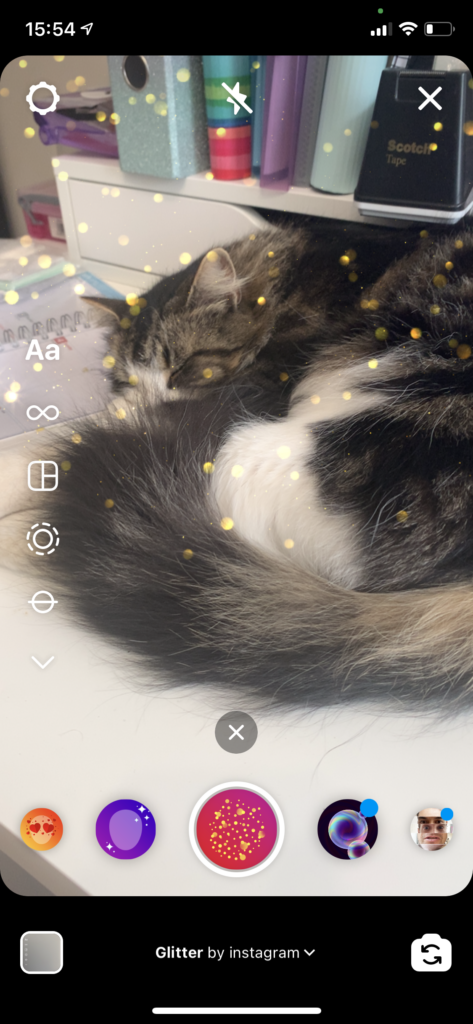
To take a photo or video of a person in focus mode, tap Focus at the bottom of the screen. The person will stay in focus, but the background will get blurry. You can only use this effect if there is a person in the photo or video.
Tap Boomerang at the bottom of the screen. Then tap the circle at the bottom. Then you can take a burst of photos that loops forward and backward.
On iPhone, you can switch between front and rear-facing cameras while recording a video. Tap and hold to start recording, then tap the camera switch icon to make the switch.

You can also upload a photo or video you’ve taken. Swipe up from the bottom of the camera screen, then select from your phone’s library to add the content to your story.
Editing Photos and Videos
Here are a few tools and features that can help:
To add a filter to your photo, swipe left or right, after taking the picture.
Tap the text icon to add text. From there, you can:
- Add an emoji.
- Adjust text size up or down by tapping the text icon and using the slider.
- Center text or align left or right by tapping the alignment icon.
- Rotate and resize the text by using two fingers to pinch and zoom until you’re happy with the way it looks.
- Choose a text color by tapping the colors at the bottom of the screen. Swipe to see more colors, or tap and hold a circle to choose a custom color.
- Change the style by tapping the button at the top of the screen.
- Add a coloured background to the text by tapping the ‘A’ icon at the top of the screen and selecting a colour.
- Pin text to a fixed spot in your video. After taking the video, add your text, then tap it and hold. Use the slider bar at the bottom of the screen to scroll through the video to find the location you wish to pin the text. Move the text and tap Pin. Tap the text icon again to add another section of text.
Tap the pen icon to draw on your photo or video. From there, you can:
- Choose between marker, chisel-tip, neon, and eraser brushes at the top of the screen.
- Adjust the line thickness by tapping on the bottom left and using the slider at the same time.
- Choose a colour to draw with by tapping the colours at the bottom of the screen. Swipe left to see more colours, or tap and hold the circle for more colour options. You can also tap the eye dropped icon and drag and drop it to select a colour from your photo or video to carry over into your story. If you need to match colours, use this tool.
Instagram Stories FAQs
• Your image can be up to 520 x 520 pixels. This is the optimum size.
• On Instagram, your video clips can be up to 15 seconds in length.
• Tap to access Stories in the top left of your screen or swipe right from anywhere in Feed.
• Tap the circle icon at the bottom of the screen to take a photo, or tap and hold to record a video. To choose a photo from your phone’s library or gallery, swipe up anywhere on the screen. If the photo or video you choose doesn’t fit on the screen at first, pinch to change the size.
• When you are ready to share, tap the three dots on the bottom right of the photo or video you’d like to share and choose “Share as Post.”
• The visibility of your story depends on the privacy setting of your account. With private accounts, only your approved followers can see your story. With public accounts, anyone on Instagram can see your story.
• To Delete:
o Open your story.
o Tap in the bottom right of the photo or video you’d like to delete.
o Tap Delete, then tap to confirm.
• To Hide:
o Tap on the three dots icon, and choose HIDE from the menu. You can hide from select users by choosing their usernames.
• Type @ and their username to select the person you’d like to mention. This sends them a notification that there is something special they need to see.
• Links can only be used in verified Instagram accounts. If you add a link, it will become a Read more button at the bottom of your
• To look at who’s seen your story, open your story and swipe up on the screen. You’ll see the number as well as the names of the people who have seen each photo or video in your story. These metrics will be visible only to you.
Give Stories a try
There’s no doubt that for many niches, it is worth giving Instagram Stories a try. Users will often spend good amounts of time sitting and watching them and the auto-play setup means that they will keep being served something new – which could be your content!
More From Skylark Virtual Services:


