
Pinterest Descriptions – How to Write Ones People Will Click
I sometimes use affiliate links in content. This doesn’t cost you anything but I may make a commission payment from anything you buy through these links. As an Amazon Associate I earn from qualifying purchases. All opinions remain my own.
Pin descriptions are often one of the things that confuse people most when they start with Pinterest marketing. What do you write in one? What don’t you write in one? Do you even bother when they have a habit of vanishing?
The truth is the Pinterest description is a very important part of your SEO on the platform. Not so much because people read it (although they do) but because it contributes towards telling Pinterest what the pin is about. And that is an important part of getting them to show it to the right people. But how do you write a great Pinterest description?
Table of Contents
What is a Pinterest description?
A Pin description is the information you add to a pin to tell Pinterest what it is about and to tell readers why they want to save or click on the pin.
When you add a pin directly to Pinterest, there’s a row that says’ ‘Tell everyone what your Pin is about’ and this is where you add the pin description.

If you schedule via Tailwind, there’s a box for the pin title then below is where you put the pin description. This will be filled in if you have the pin on your site and either add it with the data-pin-description code or with a plugin.
Once you add this, it will appear at the bottom of the pin. In this image, the pin is a Rich Pin. So, box 1 is the meta description from the blog post. And box 2 is the pin description I wrote specifically for this pin. If you don’t have rich pins, you will only see the content of the second box.

Does it really matter?
For a while now, Pinterest descriptions have often been missing on the Smart Feed or in the search results. This has led people to think that there’s no point in adding them. But that’s not true!
For the user
For starters, pin descriptions DO show when you click a pin, just like in the example above. That means people do see them and what you write there can have an impact. Write a good description, get someone curious or tell them what the post beyond offers and there’s a greater chance that they click than on image alone.
In fact, Pinterest did a study of 21,000 pins and looks at design and description. A couple of interesting stats include:
- Email signups increased by 70% with a clear actionable description and strong call to action
- Online sales increased by 6% for the same
- For products, adding a price increased sales by over one-third
For SEO
The other big reason is that Pinterest NEEDS these descriptions to better understand the pin. It uses a few main factors to decide what a pin is about – the headline or pin title, the pin description, the name of the board it is added to and (possibly) any words on the pin.
This means that a clear description with relevant keywords and variations can have a big part in Pinterest’s ability to understand the pin. Now I know there are pins out there that do well with no description – but these tend to be older pins. Pinterest knows what they are about because they’ve been around for a while and don’t need the extra info.
How do you write a good description on Pinterest?
So, there’s no doubt that writing a Pinterest pin description isn’t something you can ignore. But how do you write a GOOD one, one that will get people to click while helping with SEO?
Keyword research
Yup, it’s boring but keyword research is a crucial part of doing any kind of marketing. You need to know the words that people will use relating to your post to be able to use them, attract their attention and fulfil SEO.
Below is a quick reminder of how keywords look on Pinterest. If I search for ‘affiliate marketing’ I can see the top terms relating to that are:
- For beginners
- Make money
- For bloggers
- Top
- Tips
- Without a blog
- Passive income

A little further along was the term I used for the pin we save before – affiliate marketing on Pinterest. That’s because I wanted to focus on that specific area rather than just affiliate marketing in general.
If I go into that search term, you can see more keywords such as ‘without a blog’, ‘how to make money’ ‘tips’ and ‘work at home’ – so for my pin descriptions, these terms could be used in different variations for that post.

I keep a note of these on my Airtable base that tracks the pins I have made so I can see what keywords I have focused on as I make more pins per post.
Making a sentence
Armed with keywords, you next need to think about the user. We wouldn’t talk about ‘affiliate marketing on Pinterest work at home’ would we? We might talk about how to work at home and use affiliate marketing on Pinterest to make money.
So, when you write your description, use the keywords in ways that you would naturally. Don’t just add them together in the way Pinterest does as this often won’t read well or make sense to people.
Try to get your main keyword in the first 75-100 characters as this is the section that shows up on the pin. You can go up to 500 characters in total, but I usually aim for 2-3 sentences with 1-2 keyword variations in there.
Use a call to action
A call to action or CTA is just a sentence that prompts people to take the next step, the desired action. Something simple could be ‘check out the blog post for the full recipe’ or ‘head to the blog post to read more’. Avoid the word ‘click’ where possible.
Hashtag or not?
Hashtags are a topic of much discussion on Pinterest and there’s no right or wrong answer. What I would say is that you can test adding 2-4 in your descriptions and see what happens when you try them without. Also see if the hashtags have other content because if they don’t, then you might be better using the space for normal sentences.
How to add it to your Pin
As shown above, Pinterest has a dedicated spot on every pin you upload direction for you to add the description. If you are using the Pinterest browser extension, it will pull from the description, the sharing plugin or the ALT text (more on that in a moment).
On Tailwind
If you upload an image to Tailwind, you can add the description to the box along with the title – and don’t forget to update the URL as this defaults to your home page.
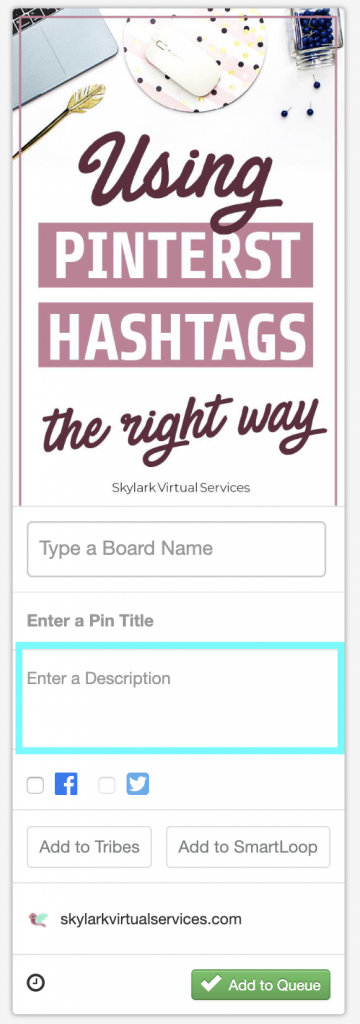
If you are using the browser extension, it will pull the information as below, but you can edit this if you want.
On your blog
There are a few ways to show a dedicated Pinterest description on a blog, with and without a plugin.
The non-plugin way is to use a small bit of code known as the data-pin-description. This looks a bit like this:
data-pin-description=”Here’s your keyword rich Pinterest description that Pinterest will use when someone pins this image! #hashtag”
You insert this code with your own description in it after the closing speech marks for the ALT text. Make sure you use straight speech marks rather than curved ones or it doesn’t work!
The plugin method is the one I’m using at the moment because it is easier and I can add multiple images, each with their own description. I’m using Grow by Mediavine which was formerly Social Pug. Another option is WP Tasty which does the same job. I went with Social Pug because it also does a range of social sharing buttons and features too that were handy.
Mastering pin descriptions
There’s no real secret to mastering pin descriptions. Think of each as a tiny sales pitch as to why someone should go to your page or post – with underlying SEO elements. Try different things such as writing it first person or third, capitalising important words or adding sections in brackets. Then see what your audience responds to and repeat!
If you are looking for more ideas on writing those descriptions, I would recommend checking out Carly Campbell’s Pinteresting Strategies. It is super affordable and she had a unique approach to Pinterest!




One Comment